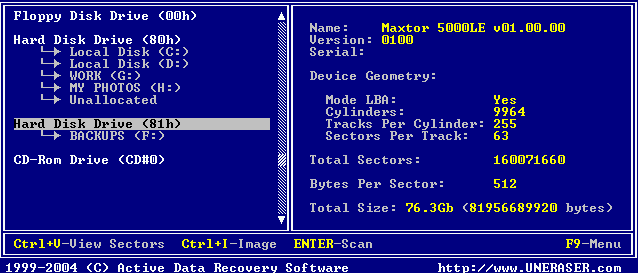
Start the program and display drive information in Microsoft Windows operating system using the following steps:
In Windows, click the Microsoft Start button.
Click All Programs > Active@ UNERASER > Active@ UNERASER (Windows Console). The UNERASER Windows Console appears.
On the left side of the window all detected drive devices or partitions are listed and numbered. Beneath each drive device or partition, logical drives appear in a tree formation, as shown in the figure above. Deleted partitions and hard drive space not occupied by partitions are listed as "Unallocated". Commands at the bottom of this screen are described below. Click on the links for more information about that item:
[Ctrl]+[V] - View Sectors — View the sectors of this drive or partition with the Hex Viewer.
[Ctrl]+[I] - Image — Create a Disk Image of this partition or drive. See Creating a Disk Image.
[F9] - Menu — Display a command menu bar at the top of the screen.
Use the mouse pointer or arrow keys to move the cursor over items on the list of drives. Positioning the cursor on a named drive, displays its information on the right side of the program window.
This document is available in PDF format, which requires Adobe® Acrobat® Reader (Free download):