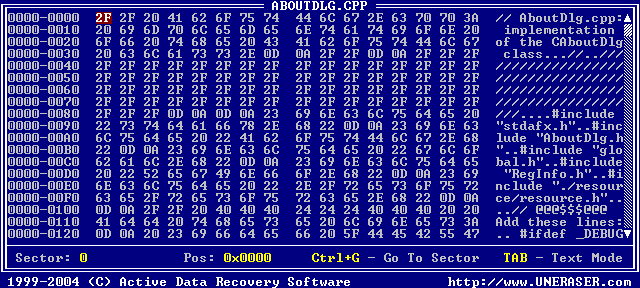
Use the Hex/Text Viewer to view sectors in a file, a logical drive or physical device. Follow the steps below:
Start Active@ UNERASER and use the arrow keys to set the marker on a file, a drive or a device.
Run View Sectors command by one of the following methods:
Press [Ctrl]+[V] key combination
Press [F9] > View > Sectors in Hex/Text Viewer
Preview window appears and you can see the data in Hex/Text format, similar
to the figure below:
You can inspect the data using keyboard keys, as described below:
[TAB] — Switch between Text mode Hex/Text mode
Ctrl+G — Go to a specific sector number. Type the sector number manually
Arrows — Move the red marker within view area
PgUp, PgDn — Go one sector forward or backward
Home, End — Jump to the first or last sector
Numbering Sectors
Sectors are numbered in three different ways, as described below:
Files (relative file sectors) — Numbering starts at sector zero and continues to last sector of the file (calculated as file size divided by 512 plus one)
Logical Drives (logical sectors) — Numbering starts at sector zero and continues to the last sectors on the drive (calculated as drive size divided by 512 minus one)
Physical Device (physical sectors) — Number starts at sector zero and continues to the last sector on the device (calculated as device size divided by 512 minus one)