I want to create backup copy of my boot information to be able to recover later?
MBR backup function is available in Active@ UNERASER from version 2.0.
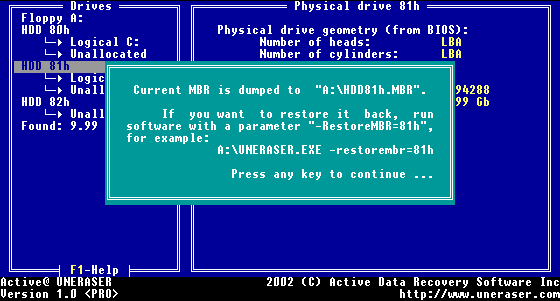
Using this floppy you can virtually restore MBR later on.
To restore MBR, Partition Table and Volume Boot Sectors from backup use the following steps:
A:\>UNERASER.EXE -restoreMBR=80h
It will virtually restore MBR, Partition Table and Volume Boot sectors to the state as it was before (when the backup MBR was created). You can see your drives and folders, and can recover deleted files and folders to another drive. It is important to keep the MBR, Partition Table and Volume Boot Sectors backup regularly.
If your partition becomes damaged and you need to restore it from the backup and save MBR, Partition Table and Volume Boot Sectors information back to the HDD we advise you to use Active@ Partition Recovery software.

