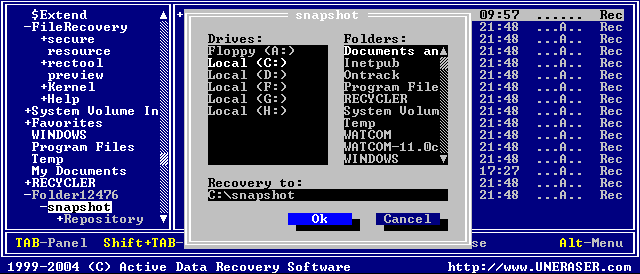
To restore the contents of a folder recursively (including files and subfolders), execute the Unerase command by one of the following methods:
Press [Ctrl]+[U] key combination
Press [F9] > File/Folder > UNERASE
A dialog box appears, similar to the figure below:
Select a secure drive and folder where the restored folder contents will be saved.
Press [Enter] to begin the process.
After the recovery process is complete, verify the contents of recovered files and subfolders. In some cases, a file can not be restored completely because its contents or a part of it has been overwritten.
If the folder that you've recovered under DOS contains files with long filenames, the batch file _RENAME.BAT is created at the destination folder and each subfolder. When you run this file under the Windows environment later on, it will rename temporary short (8.3) DOS filenames to more descriptive long file names supported by Windows. You cannot create files with long filenames under the DOS environment as long as DOS does not support them.
For the safety reasons, the utility warns you if you are trying to write the restored file back into the same drive. A newly-created file requires space to be saved. It is possible to overwrite the contents of the other deleted files or part of the very file you are trying to recover. Always restore files to another logical removable, floppy or network drive.