Start Active@ UNERASER and select a drive or hardware device.
Run the Create Image command by doing one of the following:
Press [Ctrl]+[I] key combination
Press [F9] > Image > Create Image
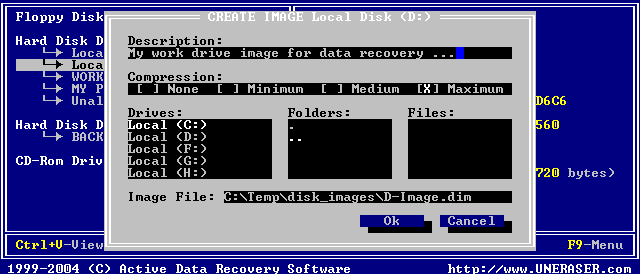
The Create Image dialog box appears, similar to the figure below:
In this dialog box, create a description, choose a compression ratio, a Disk Image location and create an Image File name.
Navigate to the Ok button and press [Enter] when all parameters are complete.
Watch the progress and wait while drive's contents are copied to the new location. You can cancel the process of image creation anytime by pressing [Esc].
The Target Location for the Create Image command must always be specified on other drive.