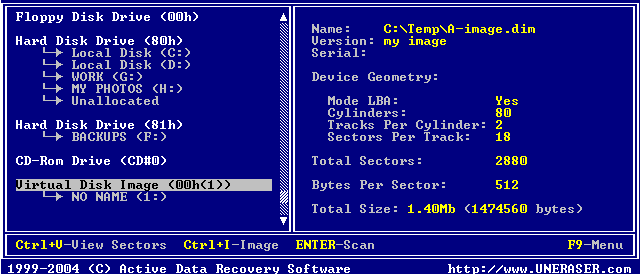
A Disk Image is a mirror copy of your entire logical drive or physical device stored as set of files. It may be a good idea to create a Disk Image for a drive containing deleted files that you want to recover, if you have enough space on another drive.
To open a Disk Image (via configuration file) follow these steps:
Start Active@ UNERASER
Run Open Image command by doing one of the following:
Press [Ctrl]+[O] key combination , or
Press [F9] > Image > Open Image
The Open Image dialog box appears.
Select an existing Disk Image (file with DIM extension) in the Open Image dialog and press [OK].
A Virtual Disk Image appears in the list of devices.
The opened disk image appears underneath existing devices in the tree in the left pane of the console. Work with an opened Disk Image the same way as with any regular drive or device, i.e. scan, find and restore files from it.